
Most small businesses already run on workflows. They just live in someone’s head, a sticky note on the monitor, and a vague feeling on Friday afternoon that the invoices “probably went out.”
Workflow automation for small business is the practice of taking a few of those repeated jobs, writing down exactly how they happen, and letting software handle the parts that do not need a human brain. AI makes some of those parts more flexible (drafting, summarizing, sorting messy text), but the hard part has not changed: picking the right process and being honest about where a person still has to decide.
This guide helps you choose a first process. It breaks down five common starting points (trigger, inputs, actions, output, human checkpoint, typical failure), then gives you a selection matrix and a blank process map. It is not a build tutorial for any one tool, and it will not tell you to hand financial decisions to a robot.
What makes a process worth automating
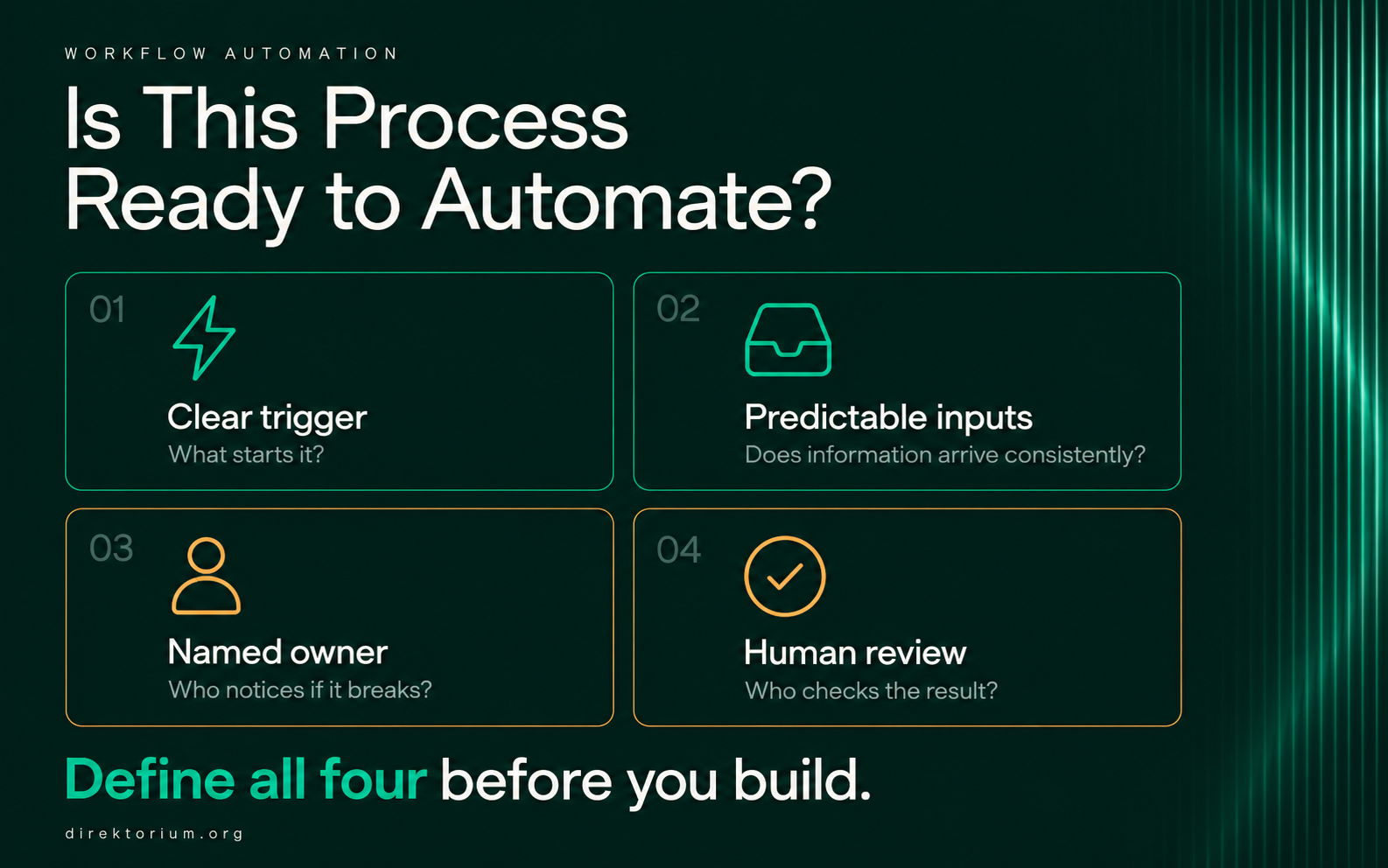
The test is predictability more than annoyance. A process is a good candidate when four things are true. It has a clear trigger, meaning a specific event starts it: a form is submitted, a meeting ends, an invoice passes its due date, it is Monday at 8:00. It has predictable inputs, so the information arrives in roughly the same shape every time. It has an owner, one named person who notices when it breaks. And it has a review point, a moment where a human looks at the output before it reaches a customer or changes money.
If you cannot name the trigger, you do not have a process yet, you have a habit. “We follow up with leads when we get a chance” cannot be automated. “When someone submits the quote form, they get a reply within one business hour” can, and writing that sentence down forces the team to agree on what good looks like.
The owner matters more than people expect, because automations fail quietly. A connected account gets logged out or a spreadsheet column moves one place to the left, and the workflow keeps “running” while doing nothing useful. Someone has to get the error email and care.
If you are still deciding which tools belong in the business at all, start with the job-first approach in our guide to choosing AI tools for small business.
Five processes small businesses usually start with
These five combine a clear trigger with work that is repetitive but still needs care. Each includes the common failure, since that is the part most demos skip. The businesses mentioned are illustrative, not case studies.
1. Lead intake: from form to first reply
Picture an illustrative interior design studio that gets quote requests through a website form. Today someone copies details into a spreadsheet and replies when they have a moment, which on a busy week means three days later.
Trigger: a new form submission. Google Forms can send every response to a linked Google Sheet automatically (Google’s help page on choosing where to save responses), and most website form plugins and integration platforms can catch submissions too.
Inputs: contact details, project type, budget range, timeline, free-text description.
Actions: log the lead, use AI to classify it (project type, urgency, budget fit), and draft a reply that mentions the specific project.
Output: a logged lead with a category and a draft reply waiting in the inbox or task list.
Human decision: someone reads the draft and sends it, or decides the lead is not a fit. Once you trust the classification, a plain “we got your request” confirmation can go out automatically while the personalized reply still waits for review.
Common failure: the AI reads “budget: flexible” as a large budget and the draft promises a site visit you do not offer. The boring fix: give the drafting step a list of things it may never promise and a fallback for anything unclear. The do and don’t approach to instruction prompts covers how to write those constraints so the model actually follows them.
2. Content drafting from a brief
The one most people think of first, and where expectations need the most adjusting. An illustrative bakery wants a weekly blog post and newsletter. The owner knows what to say but hates the blank page.
Trigger: a new brief is added, for example a new row in a content planning sheet with a topic, the key points, the audience and a deadline. The trigger should be the human adding a brief, not a status the automation sets for itself, or you will build a loop that drafts the same post forever.
Inputs: topic, three to five points that must be included, audience, length, any facts or prices that must appear exactly.
Actions: send the brief and a standing style instruction to an AI model, save the draft to a document, mark the row as “drafted” and notify the owner.
Output: a draft in a shared folder, linked from the planning sheet.
Human decision: editing, fact-checking and approval. Nothing publishes automatically.
Common failure: the draft is fluent and wrong, inventing an opening time or a “since 1998” origin story. AI drafting saves the typing, not the checking. Thin briefs produce confident filler. If your team is new to writing prompts, the beginner’s guide to prompt engineering for small businesses covers the basics that make a brief usable.
3. Meeting follow-up
A consultant has back-to-back calls, and the follow-up email with decisions and next steps is what slips.
Trigger: a meeting ends and a transcript or summary becomes available. Several meeting tools already produce these. Google Meet offers transcripts on supported Workspace editions (Google Meet transcripts help), and Zoom offers AI meeting summaries on eligible paid plans (Zoom’s meeting summary documentation). Check your own plan before designing around either.
Inputs: the transcript or summary, attendee list, and the client or project name.
Actions: extract decisions, open questions and action items with owners and dates, then draft a follow-up email and add tasks to your project tool.
Output: a draft email plus a task list.
Human decision: confirm the action items are real before anything goes to the client. A casual “maybe next quarter” can come back as a firm commitment with a deadline.
Common failure: that over-commitment, or the wrong person getting the task. Also tell participants when a meeting is transcribed, and follow the consent rules that apply to you and your client.
4. Invoice reminders
People get nervous here, and a little nervousness is healthy. The safe version automates the reminder, not the money.
Trigger: an invoice is a set number of days before or past its due date.
Inputs: invoice number, amount, due date, customer contact, payment link.
Actions: send a polite reminder on a schedule, log that it was sent, and flag the invoice to a person after the second or third reminder.
Output: reminder emails and a list of overdue accounts for review.
Human decision: anything beyond a reminder. Payment plans, write-offs, late fees, disputes and pausing a client’s service are business decisions. Keep them with a person.
Common failure: a good client gets a reminder for an invoice they paid by bank transfer that nobody reconciled. Before building anything, check whether your invoicing tool already does this. Stripe lets you schedule reminders before, on or after the due date for one-off invoices (Stripe automatic collection docs), and QuickBooks Online has automatic invoice reminders as well (QuickBooks help article). A built-in feature reading the same ledger as your payments beats a separate automation guessing what has been paid.
5. Weekly reporting
An illustrative two-person marketing team spends Monday morning copying numbers from four dashboards into a slide nobody reads past line two.
Trigger: a schedule, for example every Monday at 7:00.
Inputs: exports or connected data from your analytics, ads, email and sales tools.
Actions: pull numbers into one sheet or dashboard, compare with last week, and have AI summarize what changed.
Output: a report delivered by email or posted to a team channel. Some dashboard tools handle delivery themselves: Google’s Data Studio (called Looker Studio until April 2026) can email a report on a schedule (Data Studio scheduled delivery docs).
Human decision: interpretation. The summary can say traffic dropped. It cannot know you paused the ads on purpose.
Common failure: broken data that looks like a real result. A disconnected source reports zero and the AI writes a worried paragraph about collapsing sales. Add a rule: if a number is zero or jumps past a set threshold, flag “check the source” instead of explaining it.
The five workflows side by side
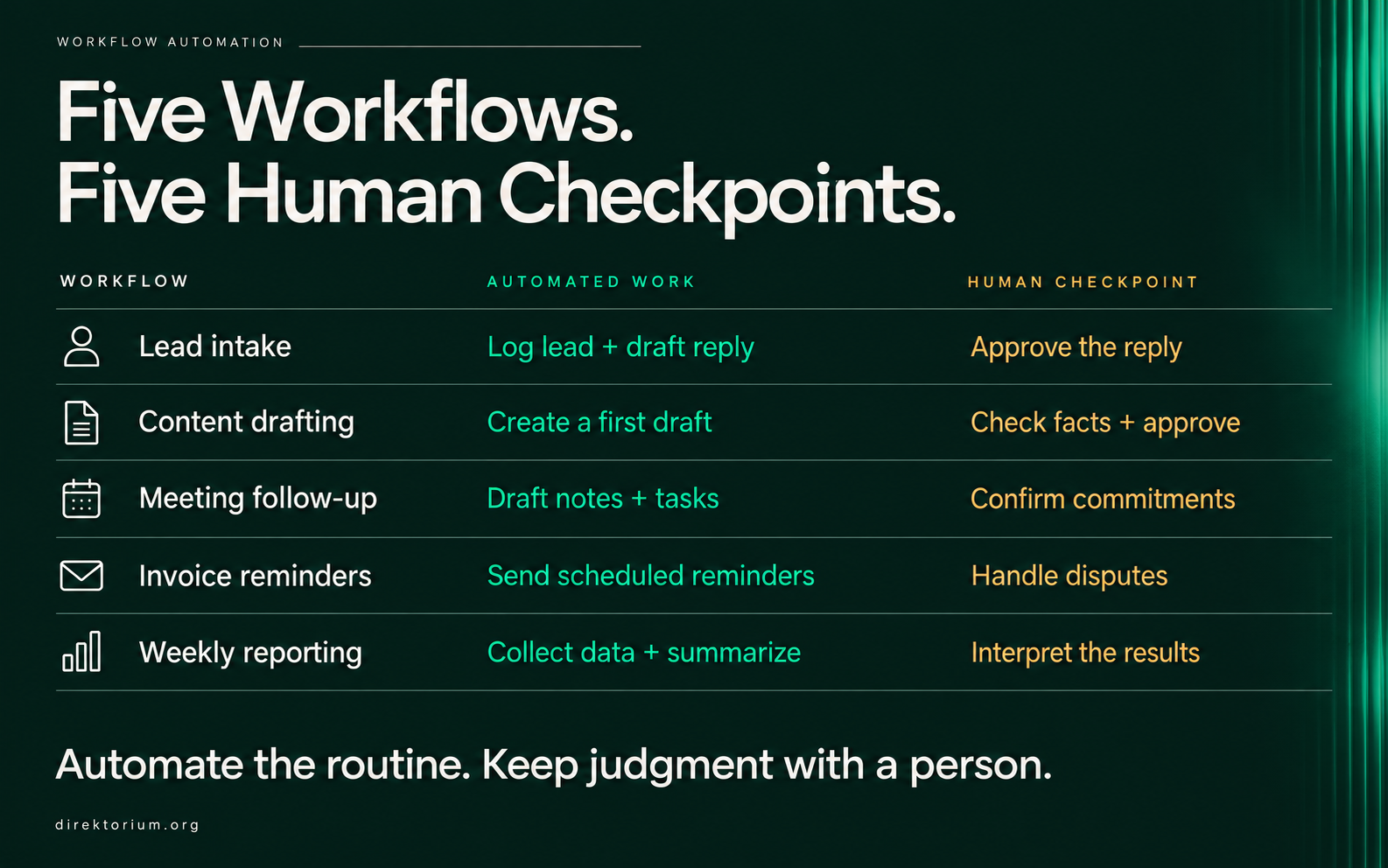
“Setup effort” below is a rough relative judgement for a small team using off-the-shelf tools, not a measured figure.
| Workflow | Trigger | Key inputs | Output | Human decision | Typical failure | Setup effort |
|---|---|---|---|---|---|---|
| Lead intake | New form submission | Contact, project type, budget, timeline, description | Logged lead, category, draft reply | Send or decline; fit judgement | Draft promises something you do not offer | Low to medium |
| Content drafting | New brief added by a person | Topic, required points, audience, exact facts | Draft document linked to the plan | Edit, fact-check, approve | Fluent text with invented facts; loops if the trigger is self-set | Medium |
| Meeting follow-up | Transcript or summary available | Transcript, attendees, project | Draft email and task list | Confirm commitments and owners | Maybes become promises; wrong owner | Low to medium |
| Invoice reminders | Days before or after due date | Invoice data, contact, payment link | Reminders sent, overdue list | Anything involving money or the relationship | Reminder sent for a paid invoice | Low (often built in) |
| Weekly reporting | Schedule | Connected data sources | Report with short summary | Interpretation and action | Broken source reported as a real drop | Medium |
A selection matrix for choosing your first one
Pick one, run it for a month, see what your team tolerates. Score each candidate from 1 to 5 on four factors.
Frequency: how often does it happen? Daily scores higher than monthly. Time spent: how much human time does each instance take today? Error cost: how bad is it if the automation gets it wrong? Score this one in reverse, so a cheap mistake scores 5 and an expensive one scores 1. Setup effort: also reversed, so a built-in feature you just switch on scores 5 and a multi-tool build scores 1.
The highest total is usually your first project. Here is an illustrative scoring for a small service business; yours will differ.
| Workflow | Frequency | Time spent | Error cost (reversed) | Setup effort (reversed) | Total |
|---|---|---|---|---|---|
| Lead intake | 4 | 3 | 3 | 4 | 14 |
| Content drafting | 3 | 4 | 3 | 3 | 13 |
| Meeting follow-up | 4 | 3 | 3 | 4 | 14 |
| Invoice reminders | 3 | 2 | 2 | 5 | 12 |
| Weekly reporting | 2 | 3 | 4 | 2 | 11 |
| Illustrative scores for a fictional service business. Not measured data. | |||||
When totals tie, pick the workflow your team complains about most, since complaints predict whether people will use the result. And invoice reminders can score modestly on paper while being the quickest win in practice, because the feature may already be sitting in your invoicing tool.
What implementation actually involves
Vendor demos make this look like a ten-minute job. More often the build takes an afternoon and the stabilizing takes a few weeks.
Map the process on paper with the template below, including the ugly exceptions (“unless it is a returning client, then Maria handles it”). Choose where it runs: a built-in feature, or an integration platform such as Zapier or Make when tools do not talk to each other. Build the smallest version that keeps a human at the review point, run it alongside the manual process for a week or two, and only then remove the manual step.
Budget for running costs, and check how each service counts usage. Integration platforms bill by usage units that are not interchangeable. Zapier counts tasks, where each successful action generally uses one task (Zapier’s explanation of task usage). Make bills in credits, and its documentation separates credits from the operations a scenario performs (Make’s help page on credits and operations). AI steps add their own cost, and a chat subscription does not cover them: OpenAI, for example, bills API usage separately from ChatGPT plans (OpenAI’s billing help), and the API is what automation platforms call when you connect your own key. A workflow that runs 30 times a month and one that runs 3,000 times will have very different bills.
On security: connect accounts with the least access the workflow needs, keep API keys in the platform’s credential manager rather than a spreadsheet, and remove access when someone leaves.
Blank process-mapping template
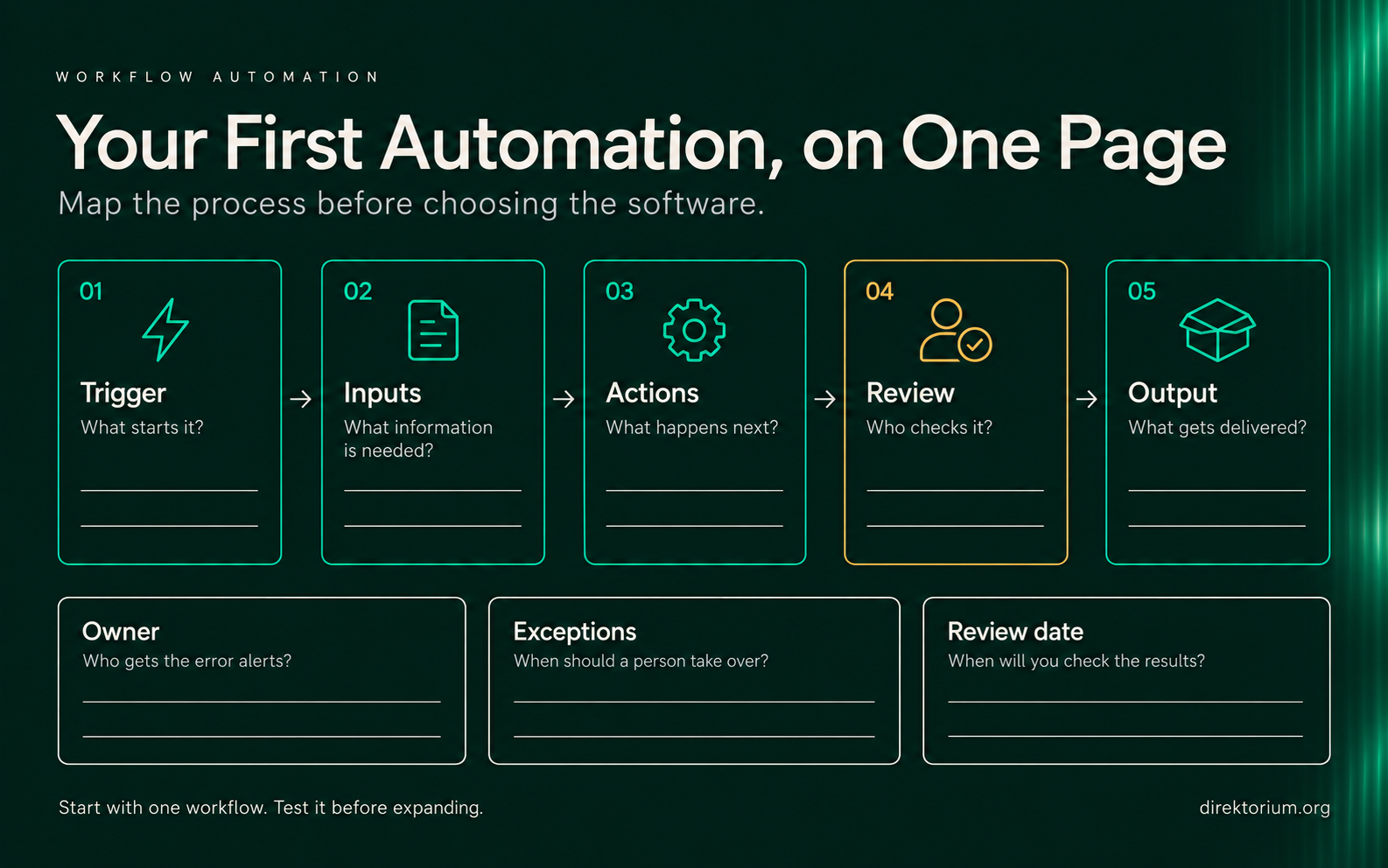
Fill one in per workflow before touching any software. A row you cannot fill in tells you the process is not ready.
| Field | What to write | Your answer |
|---|---|---|
| Process name | A short, plain name the whole team uses | |
| Owner | One named person who gets the error alerts | |
| Trigger | The exact event that starts it | |
| Inputs | Every field or file needed, and where it comes from | |
| Actions | Each step in order, marking which ones use AI | |
| Output | What exists when it is finished, and where it lives | |
| Human decision point | Who reviews what, before it reaches a customer or money | |
| Exceptions | Cases that should skip the automation and go to a person | |
| Common failure | The most likely way it breaks, and how you would notice | |
| Frequency and time today | How often it happens and how long each instance takes | |
| Tools and costs | Services involved, billing unit, expected monthly usage | |
| Review date | When you will check whether it is still worth running |
Where to stop
The honest limit of small-business automation is judgement. Software is good at moving information and drafting from clear inputs. It is bad at noticing that a long-standing client sounds upset, that a “lead” is a competitor fishing for prices, or that this month’s dip in revenue is seasonal rather than a crisis. Keep a person where those calls get made, even after months of smooth running.
If your first workflow saves time and nobody has been embarrassed by an email it drafted, pick the next one. Direktorium keeps publishing practical guides on prompts, tools and AI workflows for small teams, so bookmark it as you build. And if you would rather have someone design and set up the workflow with you, BBDirector offers done-for-you help.